


27 Oct How to Leave Reviews on Google Without Any Confusion
How to Leave Reviews on Google Without Any Confusion
How to Leave Reviews on Google in a Few Steps
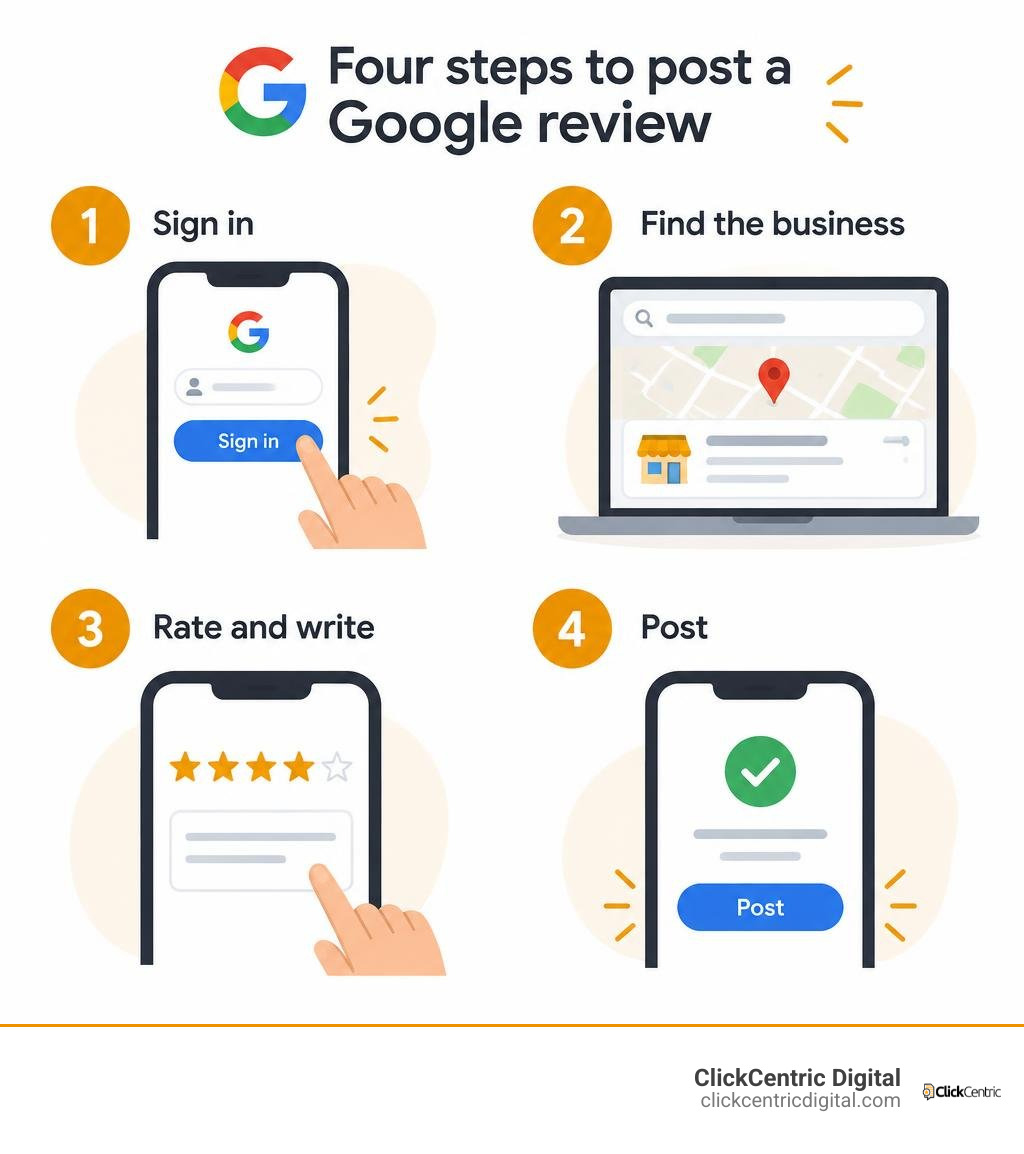
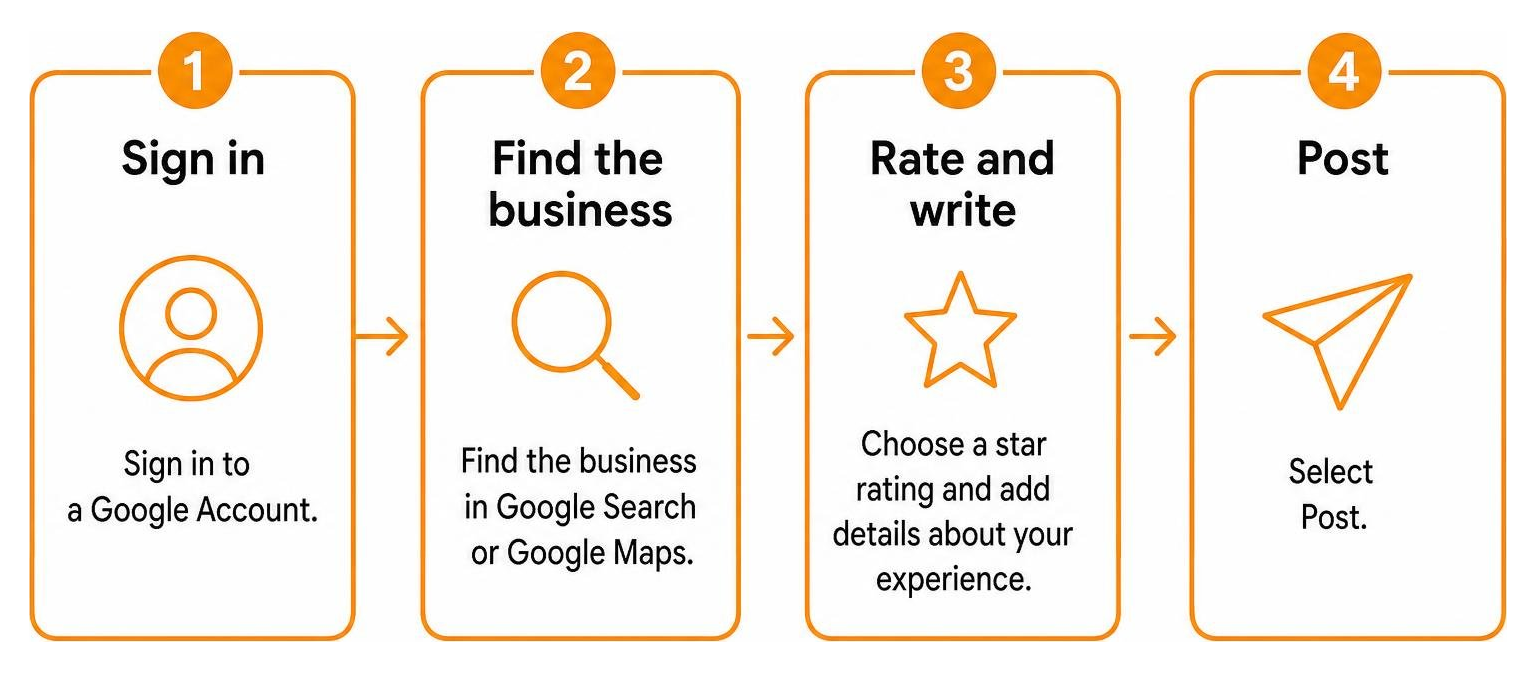
To leave a review on Google, sign in to a Google Account, then:
- Find the business in Google Search or Google Maps.
- Select Write a review.
- Choose a star rating and add details about your experience.
- Select Post.
You can do this on a phone or computer, and you do not need a Gmail address. Your review is public, so check the business location and your profile name before posting.
If you run a local business, these are the steps customers need to follow. I’m Fred Dirkse, and I’ll show you how the process works across devices.
Glossary for how to leave reviews on google:
- Google Reviews: Everything You Need to Know
- Claiming Your Google Review Page Without the Headache
- Get More 5-Star Ratings with a Google Review QR Code
Sharing feedback helps other consumers make informed choices and provides local business owners with vital insights. In fact, 83% of consumers read reviews on Google, and 71% rely on Google more than any other platform when evaluating local establishments. Reviews account for 16% of local SEO ranking factors, and high star ratings represent the 8th most critical visibility factor in modern AI search results. Whether you want to highlight outstanding customer service or leave constructive feedback, the process is straightforward once you know how the system operates.
Prerequisites: What You Need to Leave a Google Review
Before writing your thoughts, you must meet a few basic technical requirements:
- An Active Google Account: You must be signed in to submit a rating. Google requires authentication to curb spam, maintain platform integrity, and prevent bot-generated reviews.
- An Internet-Connected Device: You can use a smartphone, tablet, laptop, or desktop computer.
- A Modern Browser or App: The latest version of Chrome, Safari, Firefox, Edge, or the native Google Maps app ensures full compatibility.
When posting, your review is public. Anyone browsing Google Search or Google Maps will see your account profile name, your profile photo, any media attachments you provide, and any past public reviews linked to your account. To gain a broader perspective on the platform’s role in local search, take a look at our guide on understanding how Google reviews work.

How to Leave Reviews on Google Without a Gmail Address
A common misconception is that you must have an @gmail.com email address to share feedback. You can register any active email address (such as Yahoo, Outlook, iCloud, or a custom work domain) as a verified Google Account.
Here is how to set up an account using your preferred email:
- Go to
accounts.google.comin your web browser. - Click Create account and select For my personal use.
- Fill in your name.
- When prompted for an email, select Use my present email address instead.
- Type your existing non-Gmail address.
- Create a secure password, click Next, and retrieve the verification code sent to your inbox.
- Enter the code, complete the basic security setup, and your new Google Account is ready.
Once verified, this account allows you to rate and review any place on Google without opening a new Gmail inbox.
Posting Anonymously and Protecting Your Privacy
Google does not allow completely anonymous reviews. Every rating connects to an authenticated profile to hold users accountable and prevent fraudulent activity. However, if you prefer not to display your legal full name, you can adjust your profile details:
- Update Your Display Name: Visit
myaccount.google.com, navigate to Personal info, click on your name, and update it to a shortened version, initials, or a business alias. - Change Your Profile Image: Within the same Personal info tab, remove your personal photograph or replace it with a neutral avatar or generic icon.
- Manage Contribution Visibility: In Google Maps, tap your profile icon, go to Your profile > Profile settings, and manage your public contribution settings.
Note: While adjusting your display name protects your privacy, using overly suspicious handles or pseudonyms may cause automated spam algorithms to scrutinize your submissions more closely.
How to Leave Reviews on Google on Desktop and Mobile
Google offers consistent functionality whether you are sitting at a workstation or walking around town with a smartphone. Below is a breakdown of how the workflow compares between desktop browsers and mobile devices.
| Feature / Step | Desktop (Google Search & Maps) | Mobile (Google Maps App) | Mobile (Mobile Web Browser) |
|---|---|---|---|
| Primary Access Point | Web browser via Google.com or Google Maps | Google Maps native app (iOS & Android) | Safari, Chrome, or default mobile browser |
| Authentication | Google Account top-right login | System Google Account or in-app sign-in | Web browser sign-in screen |
| Finding the Business | Search bar or Maps location pin | Search bar or Explore tab | Search query on mobile browser |
| Review Button | “Write a review” button in the Knowledge Panel | “Reviews” tab > Star prompt or “Rate and review” | “Reviews” tab > “Rate and review” |
| Media Uploads | Drag and drop or file upload from drive | Direct camera access or photo gallery picker | File selector / photo library |
| Quick Prompts | Specific service tags, spending estimates | Contextual tags (e.g., dine-in, takeout, price) | Text area with basic star rating |
How to Leave Reviews on Google on a Computer via Search and Maps
Using a desktop computer offers ample screen space and makes typing detailed commentary effortless. You can write your feedback via Google Search or Google Maps.
Method 1: Using Google Search
- Open your web browser and navigate to
google.com. - Type the exact name of the business along with its city (for instance, searching for a local service provider in Grand Rapids, MI).
- Look at the right side of the screen to locate the Knowledge Panel (the detailed box displaying hours, address, and photos).
- Scroll down within the Knowledge Panel until you see the Reviews section.
- Click the Write a review button.
- A pop-up window will appear. Choose your star rating (from 1 to 5 stars), write your narrative, answer any prompt questions (such as service type or pricing), upload photos if available, and click Post.

Method 2: Using Google Maps
- Open your browser and visit
maps.google.com. - Type the name or address of the establishment into the search field in the upper left corner.
- Select the correct business from the search results to open its detailed sidebar.
- Scroll down the left sidebar until you reach the Review summary area.
- Click Write a review.
- Select your star rating, input your feedback, add optional images, and select Post.
For more help navigating desktop-specific features, review the official guidelines to add, edit, or delete Google Maps reviews.
Step-by-Step Mobile Process via App and Browser
Mobile devices make it easy to leave feedback while an experience is fresh in your mind.
Using the Google Maps App (iOS & Android)
- Open the Google Maps app on your phone.
- In the top search bar, enter the company’s name.
- Tap the matching business pin on the map or select its listing from the bottom tray.
- Tap the Reviews tab near the top of the listing overview.
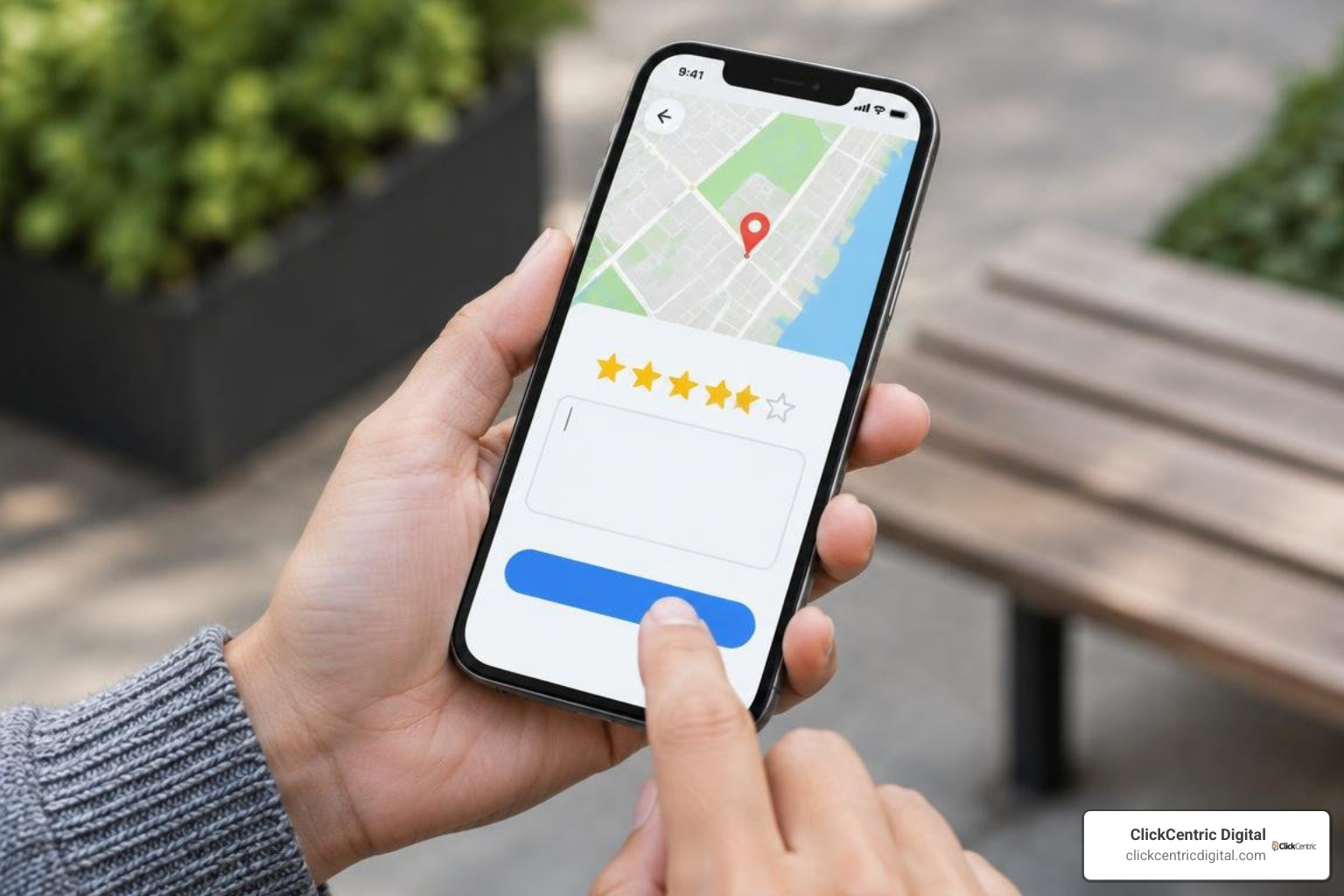
- Scroll down slightly to find the empty five-star rating bar. Tap the specific star count you wish to award (1 to 5).
- A full submission window will open. Write your review, answer any multiple-choice attributes (like meal type, wait time, or project quality), and tap Add photos to attach images from your camera roll.
- Tap Post in the top right corner.
If you are visiting a local storefront, you might also find physical signs or receipts featuring direct digital prompts. Modern companies frequently streamline this interaction by allowing customers to scan and submit feedback using a Google review QR code.
Managing Your Reviews: Editing, Deleting, and Posting Times
Your consumer feedback is never permanently locked. If your experience changes, if a company resolves an issue, or if you simply spotted a typo, you can easily modify or retract your rating.
How to Edit or Delete an Existing Review
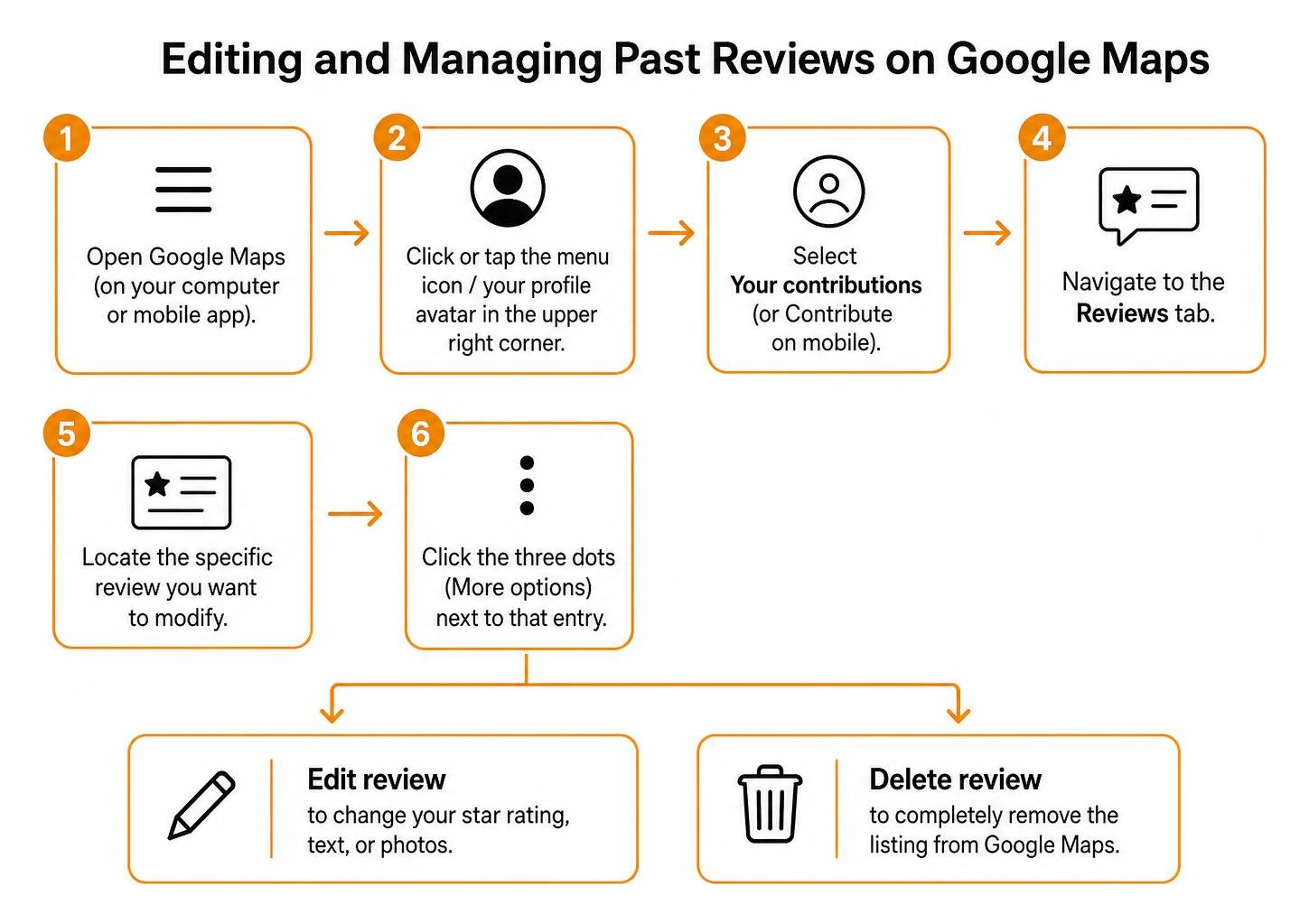
- Open Google Maps (on your computer or mobile app).
- Click or tap the menu icon / your profile avatar in the upper right corner.
- Select Your contributions (or Contribute on mobile).
- Navigate to the Reviews tab.
- Locate the specific review you want to modify.
- Click the three dots (More options) next to that entry:
- Select Edit review to change your star rating, text, or photos.
- Select Delete review to completely remove the listing from Google Maps.
Why Reviews Don’t Always Appear Instantly
While most submissions appear immediately, some take hours or several days to surface publicly. Google uses automated machine learning systems to review submissions before displaying them.
Common reasons for moderation delays include:
- New Account Status: Accounts with little to no prior activity often undergo thorough automated checks.
- Flagged Vocabulary: Including external links, phone numbers, email addresses, or aggressive language triggers moderation filters.
- Sudden Velocity Spikes: When a location receives dozens of entries simultaneously, Google temporarily pauses publication to prevent review gating or coordinated manipulation.
- Geographic Mismatches: If your device’s location data shows no record of visiting the region or business area, the algorithm may perform additional checks.
Business owners must stay vigilant regarding incoming feedback. You can learn proactive techniques by monitoring customer feedback and responses to maintain an engaging profile.
Best Practices for Writing Helpful and Impactful Feedback
A short single-star or five-star rating without text offers minimal value to other consumers. High-quality reviews provide actionable context, recognize hardworking employees, and help local businesses improve their operations.
- Be Specific and Detailed: Instead of writing “great food,” explain what you ordered, how quickly the kitchen prepared it, and what the atmosphere was like.
- Remain Objective and Factual: If you experienced poor service, detail what happened calmly rather than resorting to emotional insults. Explain dates, times, and clear facts.
- Upload Clear Photos or Videos: Highlighting a clean dining area, a well-executed home renovation, or a clear invoice builds trust. Visual proof is especially valuable for other shoppers.
- Follow Platform Policies: Avoid promotional codes, duplicate submissions across multiple branches, or commercial advertisements.
Writing thorough feedback supports local discovery and earns points in the Google Local Guides program, which awards digital badges and early access to select platform features. If you are an entrepreneur looking to turn positive feedback into sustained growth, check out our guide on building your local presence with customer feedback.
Frequently Asked Questions about Google Reviews
Can a business delete my Google review?
No. Business owners do not have the administrative power to remove reviews simply because they dislike the feedback or received a low star rating. A merchant can only flag a review for removal if it directly violates Google’s Content Guidelines (such as spam, hate speech, explicit content, or verified conflicts of interest). If you are a business owner dealing with illegitimate reviews, check out our resource on managing and disputing inappropriate customer feedback.
How do I report an inappropriate or fake Google review?
If you spot a review containing offensive material, private personal information, or obvious spam, you can report it directly to Google:
- Locate the offensive review on Google Maps.
- Click the three vertical dots in the corner of that review box.
- Select Report review.
- Choose the violation reason that best matches the issue (e.g., Off-topic, Spam, Conflict of interest, Profanity). Google’s trust and safety team will assess the report and remove the entry if it breaches policy.
Can I leave more than one review for the same business?
No. Google restricts each individual account to one active review per business profile. If you revisit an establishment and want to share an updated perspective, navigate to Your contributions, select Edit review, and update your written thoughts and star rating to reflect your latest visit.
Conclusion
Mastering the review process helps you share your voice, reward quality businesses, and warn your community when standards fall short. For consumers, leaving a review takes less than two minutes. For local businesses, those ratings build trust, enhance local visibility, and attract new clients.
At ClickCentric Digital, we specialize in helping local businesses across West Michigan manage customer feedback, optimize their digital presence, and expand their reach through targeted search and paid advertising strategies. If you want to refine how your company handles customer sentiment, explore our comprehensive strategies for Google review mastery and take complete control of your online presence.
Sorry, the comment form is closed at this time.