

04 Aug Claiming Your Google Review Page Without the Headache
Claiming Your Google Review Page Without the Headache
What Is a Google Review Listing and How It Works
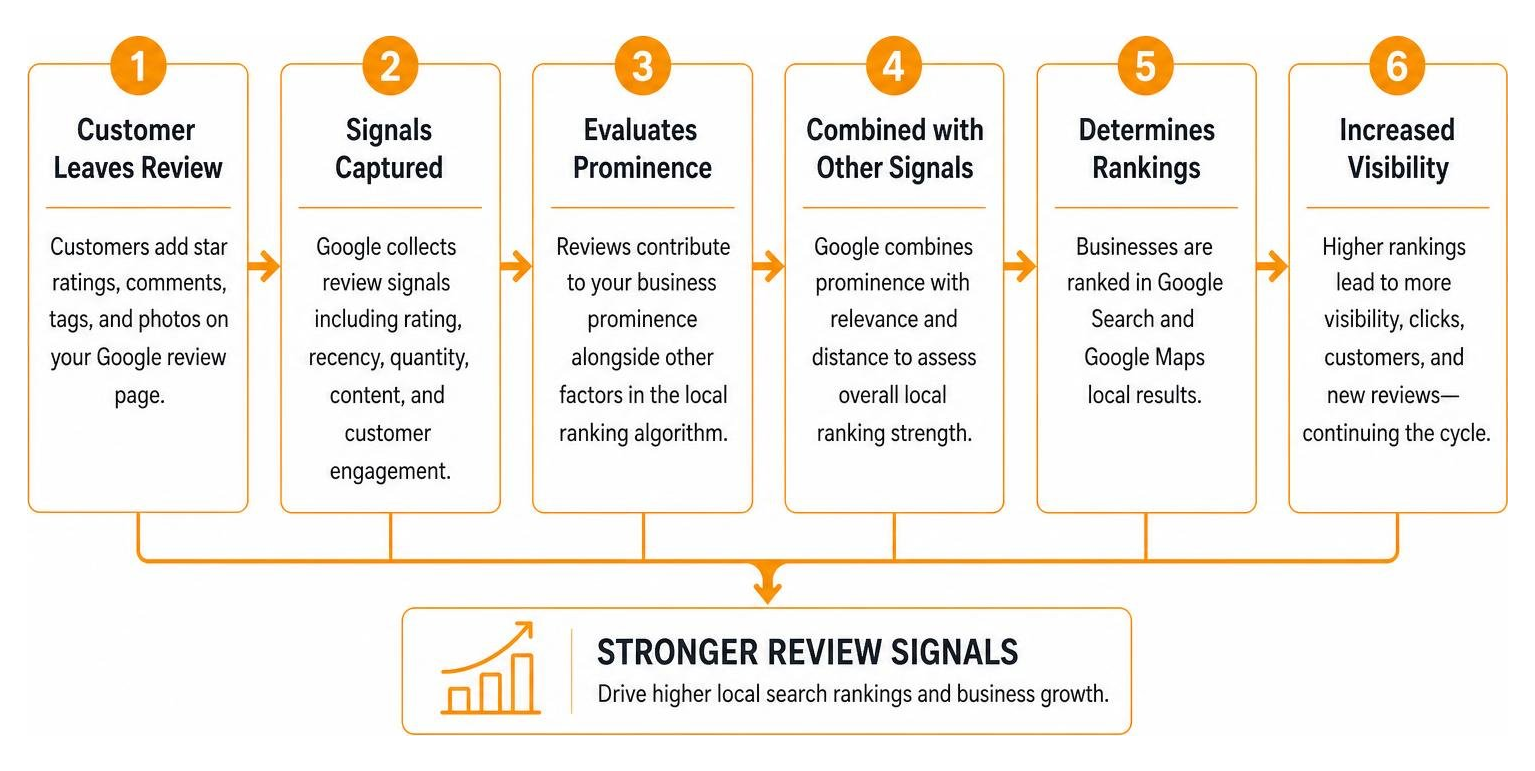
A google review page is a core component of your Google Business Profile (formerly Google My Business). It acts as a public ledger on Google Search and Google Maps where past customers leave star ratings, text feedback, service tags, and photos. These public reviews form the backbone of local search visibility.
When users search for services across West Michigan—whether in Grand Rapids, Holland, Grand Haven, or South Haven—Google evaluates three main local ranking signals: relevance, distance, and prominence. Your google review page directly feeds into prominence. Higher star ratings and a steady stream of fresh feedback signal to Google’s local algorithm that your business is active, reliable, and trusted.
Understanding Google Business Profile Integrations
Your review listing does not exist in isolation. It integrates directly into several Google interfaces:
- Google Knowledge Panels: When someone searches directly for your business name, a dedicated panel displays on the right side of desktop screens (or top of mobile screens) featuring your aggregate star rating and top review excerpts.
- Google Maps Interface: Users exploring your local area via Google Maps see your total review count right alongside your pin location.
- User-Generated Content (UGC): Photos, service tags, and video updates submitted by customers enhance your listing’s richness without requiring manual management.
Managing this feedback directly is essential to maintaining local search authority. You can log in through Google Business Reviews to start tracking your public sentiment. For a broader overview of local review structures, check out our guide on Google Reviews: Everything You Need to Know.
How to Set Up and Share Your Direct Google Review Page Link

Asking customers to “Find us on Google and leave a review” creates friction. Most people get lost navigating search results. Providing a direct link that opens the exact 5-star review form saves effort and increases conversion rates.
To get your official share link from your dashboard:
- Log in to your verified Google Business Profile.
- Navigate to your business dashboard on Google Search or Maps.
- Click the Ask for reviews button.
- Copy the custom short URL provided by Google.
This direct URL can be placed in email signatures, printed on post-purchase receipt slips, or embedded inside SMS follow-up messages. To explore how proactive customer communication drives growth, see Mastering Local Reviews to Win More Customers.
Locating Your Place ID for a Direct Google Review Page Link
If you run a Service Area Business (SAB)—such as a mobile plumber or electrician serving Kalamazoo without displaying a physical address—the standard dashboard tool can occasionally glitch. In those cases, you can build a review link manually using your unique Place ID.
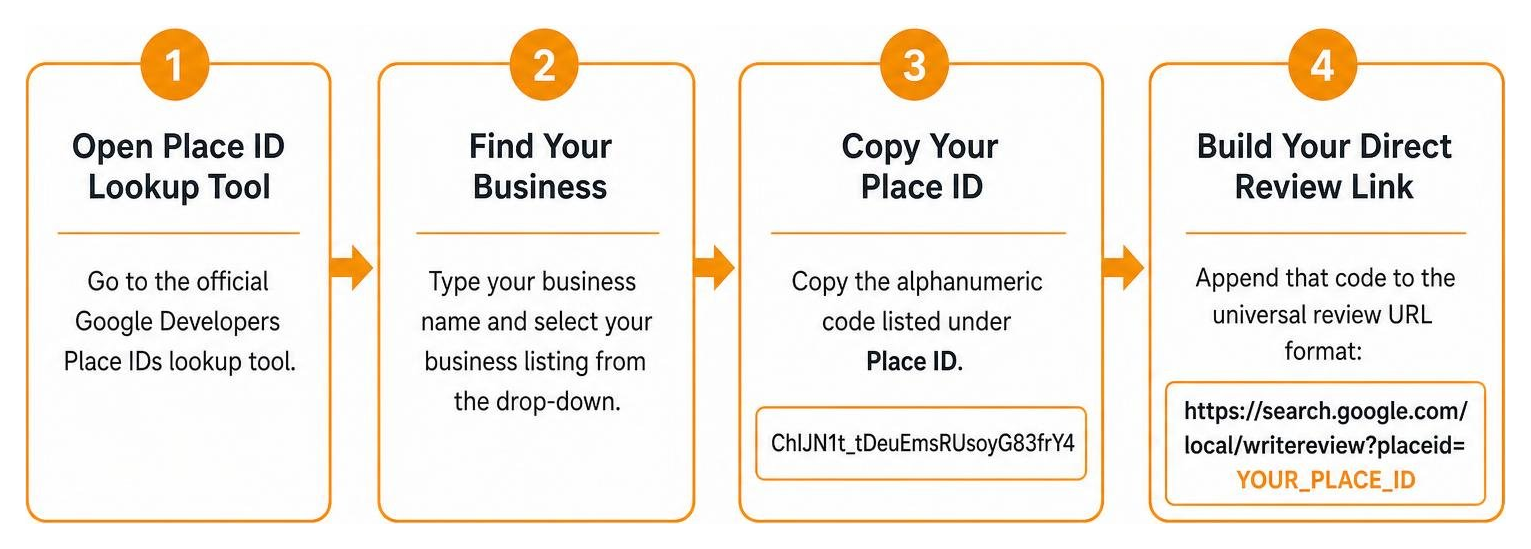
- Open the official Google Developers Place IDs lookup tool.
- Type your business name and select your business listing from the drop-down.
- Copy the alphanumeric code listed under Place ID (for example:
ChIJN1t_tDeuEmsRUsoyG83frY4). - Append that code to the universal review URL format:
https://search.google.com/local/writereview?placeid=YOUR_PLACE_ID
When a client clicks that assembled URL, it bypasses the search results page and pops open your feedback modal immediately.
Automating Review Requests for Better Ratings
Timing is critical when asking for feedback. Automated workflows send review requests via email or text immediately following a successful job completion or product delivery.
Automating this touchpoint keeps your stream of incoming reviews consistent—a critical factor since Google’s algorithms favor businesses with recent feedback over those with dormant profiles. If you want to increase your average score, dive into our framework to Stop Settling for Four Stars and Generate More 5-Star Reviews Today.
How to Leave and Edit Customer Reviews Across Devices
Leaving Feedback on a Google Review Page Across Devices
Leaving a review on a business’s google review page varies depending on the hardware and software used:
- Desktop Web Browsers: Open Google Search or Google Maps, search for the business, locate the local profile card, scroll to the reviews section, and click Write a review.
- Google Maps Mobile App (iOS & Android): Search for the business name, tap the business card at the bottom of the screen, tap the Reviews tab, and tap the star rating row to open the full feedback screen.
- Mobile Web Browsers: Search via Chrome or Safari, tap the map card, navigate to reviews, and tap Write a review.
For official step-by-step guidance, refer to the documentation on how to Add, edit, or delete Google Maps reviews & ratings.
How Customers Edit or Delete Written Reviews
Customers can update or delete feedback they previously submitted. If an issue gets resolved by a business owner, a customer can easily update their score:
- Open Google Maps while signed into the same Google account used to write the review.
- Open the menu and click Your contributions.
- Select the Reviews tab to see past submissions.
- Click the three dots (More) next to the specific review.
- Choose Edit review or Delete review.
Whenever a review is edited, its published date automatically shifts to reflect the new update timestamp.
Managing, Replying to, and Moderating Business Reviews
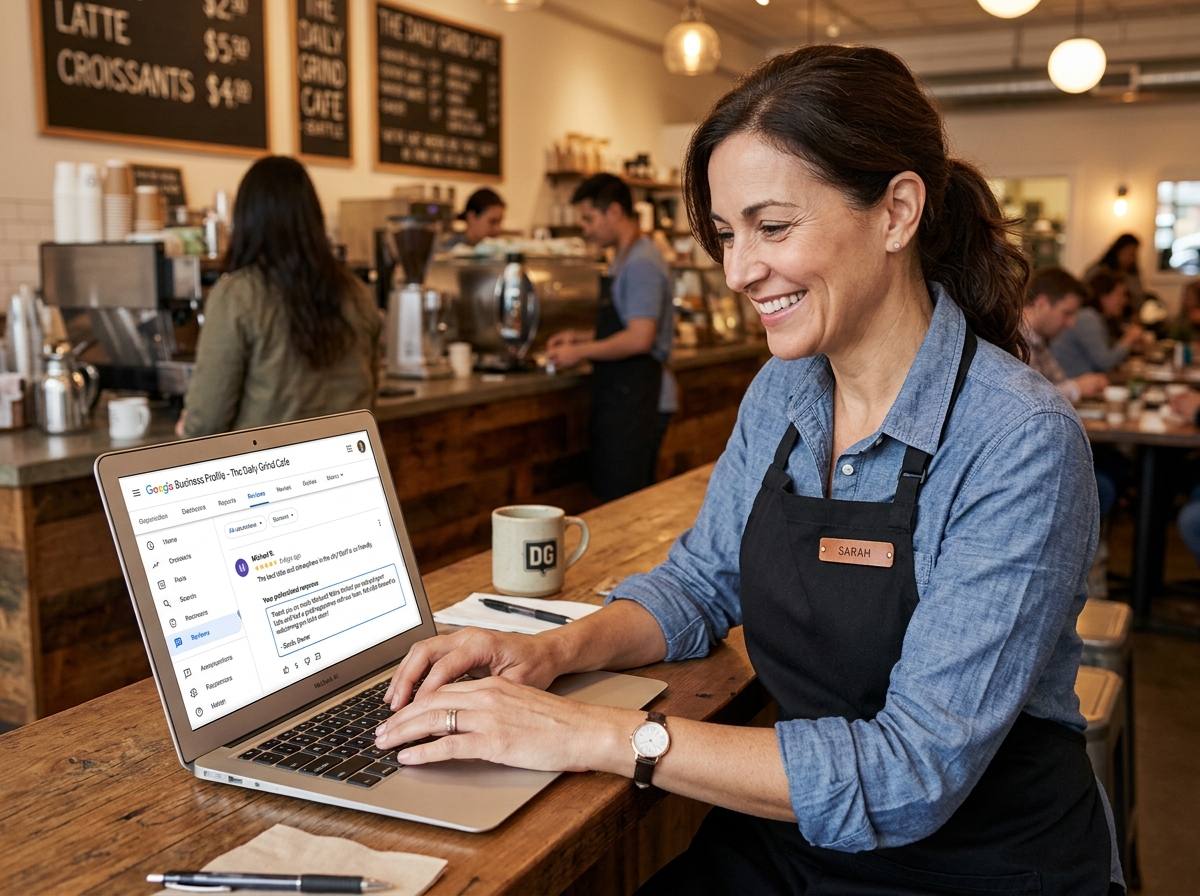
Consistently replying to feedback on your google review page shows customers that you value their business. Google explicitly confirms that responding to customer reviews improves local brand trust and profile engagement.
To reply to your customer reviews:
- Ensure your profile is fully verified.
- Search for your business on Google or open the Google Maps app.
- Select Read reviews.
- Find the review you want to address and click Reply.
When you post a reply, it displays publicly under your official business name. The reviewer receives an email notification containing your response. Most owner replies are approved within 10 minutes, though Google notes moderation can take up to 30 days in rare edge cases.
For deeper strategy on managing feedback, consult the official Google support page to Manage customer reviews – Google Business Profile Help alongside our guide to Manage Your Google Review Responses Like a Pro.
Handling Negative Feedback and Flagging Policy Violations
Negative reviews happen to every business. Address critical reviews calmly and professionally:
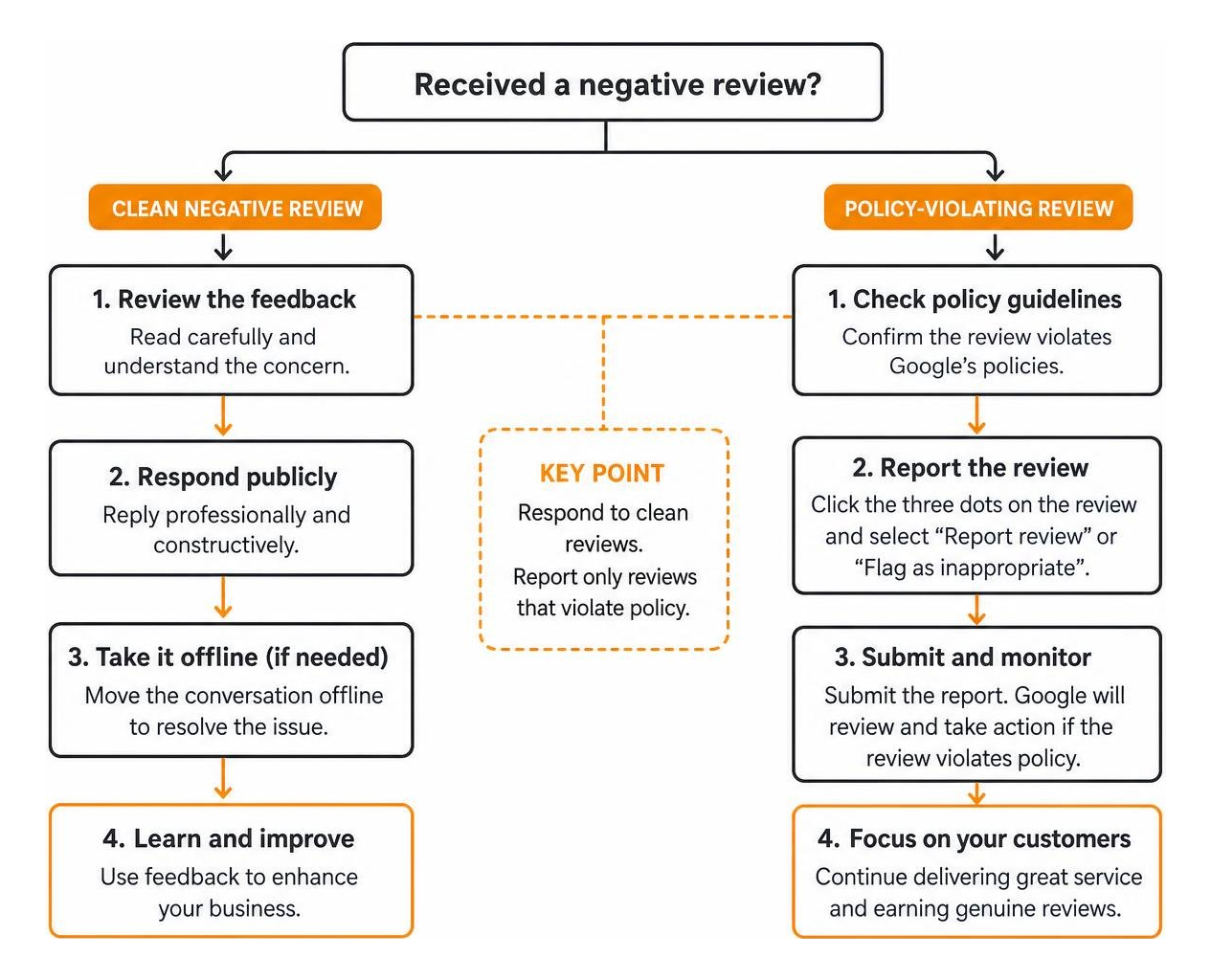
If a review contains prohibited content—such as spam, hate speech, explicit language, or conflict of interest—you can request its removal:
- Locate the offensive review on your google review page.
- Click the three dots in the top corner of the review block.
- Click Report review or Flag as inappropriate.
- Select the specific policy violation reason from the checklist.
Google relies on automated systems and human reviewers to evaluate flagged posts. Google will never remove a review simply because it expresses a negative opinion about a business experience. To learn more about navigating tough situations, read How Do You Get Rid of Bad Google Reviews? A Step-by-Step Guide.
Programmatically Fetching and Analyzing Review Data
Interacting with the Google Business Profile API
For multi-location businesses across West Michigan, manually checking each google review page is inefficient. Developers and agency teams use the Google Business Profile API to handle review management at scale.
To start fetching review data programmatically:
- Register your application inside the Google API Console.
- Set up OAuth 2.0 credentials for account authorization.
- Utilize the official API endpoints to query feedback.
To list all reviews for a location, issue a GET request to the location resource:
GET https://mybusiness.googleapis.com/v4/accounts/{accountId}/locations/{locationId}/reviews
To retrieve reviews across multiple physical locations simultaneously, send a POST request using batchGetReviews:
POST https://mybusiness.googleapis.com/v4/accounts/{accountId}/locations:batchGetReviews
Replies can also be published programmatically by sending a PUT payload containing your response string directly to the review reply endpoint. For code samples and syntax specifications, consult Work with review data | Google Business Profile APIs.
Using Third-Party APIs and Sentiment Analysis Tools
If building directly on Google’s core endpoints is outside your scope, specialized tools like the Place Reviews API – API Direct offer direct data pipelines.
These developer tools extract raw text, numerical ratings, author metadata, photo URLs, and owner response strings. Running these review exports through AI sentiment models lets you identify common operational trends—like recurring praise for staff or complaints about service wait times—across your location network.
Frequently Asked Questions About Google Business Reviews
Why is the ‘Write a review’ button missing on a profile?
If a customer claims they cannot find the review button on your google review page, it is usually due to one of four common issues:
- Viewing Corporate Brand Panels: The user searched for a national corporate brand name rather than your specific local storefront profile. Corporate brand Knowledge Panels do not accept direct local reviews.
- Unverified Profiles: If your Google Business Profile is unverified or suspended, public review functionality is temporarily disabled.
- Logged-Out User State: Google requires an active user account to leave feedback. If the user is browsing in Incognito mode or logged out, the button may disappear or redirect to a login screen.
- Ad-Blocker Interference: Strict browser security extensions occasionally block external review scripts from loading completely.
Can customers leave a review without a Gmail account?
Yes. Customers do not need a @gmail.com address to leave a Google review. However, they do need a Google account.
Anyone can register an existing personal or business email address (such as name@yourdomain.com or an Outlook address) as a Google account by visiting accounts.google.com/signup and choosing Use my current email address instead.
Once created, that account works for reviewing local businesses on Google Search and Maps. Google enforces account verification to stop automated bots and prevent anonymous spam submissions.
What content violates Google’s review policies?
Google strictly enforces user-generated content policies. Reviews containing the following elements will be removed automatically or upon flagging:
- Spam and Fake Content: Reviews created to manipulate ratings, posted repeatedly from multiple accounts, or submitted by competitor profiles.
- Off-Topic Rants: Submissions focusing on political, social, or personal commentary unrelated to a real customer service experience.
- Prohibited & Restricted Items: Promoting illegal products, dangerous activities, or restricted goods.
- Inappropriate Content: Explicit language, profanity, slurs, hate speech, or personal harassment aimed at business employees.
- Conflicts of Interest: Posting reviews for your own business, or having current employees post review entries disguised as organic customers.
For a deeper look into dealing with policy-violating content, review our detailed guide on How to Remove Negative Reviews: 5 Guaranteed Methods.
Conclusion
Your google review page is more than just a place where star ratings accumulate—it is your digital storefront front porch. Managing your review link, responding quickly to feedback, and resolving customer issues directly drives local search rankings and foot traffic across Grand Rapids, Holland, Grand Haven, South Haven, and Kalamazoo.
At ClickCentric Digital, we specialize in helping local businesses across West Michigan dominate local search rankings, streamline online reviews, and turn clicks into loyal clients.
If you are ready to gain control of your online reputation and scale your business, dive into The Business Owner’s Guide to Google Review Mastery or contact our digital team today!
Sorry, the comment form is closed at this time.