

10 Aug Get More 5-Star Ratings with a Google Review QR Code
Get More 5-Star Ratings with a Google Review QR Code
What Is a Google Review QR Code and How Does It Work?
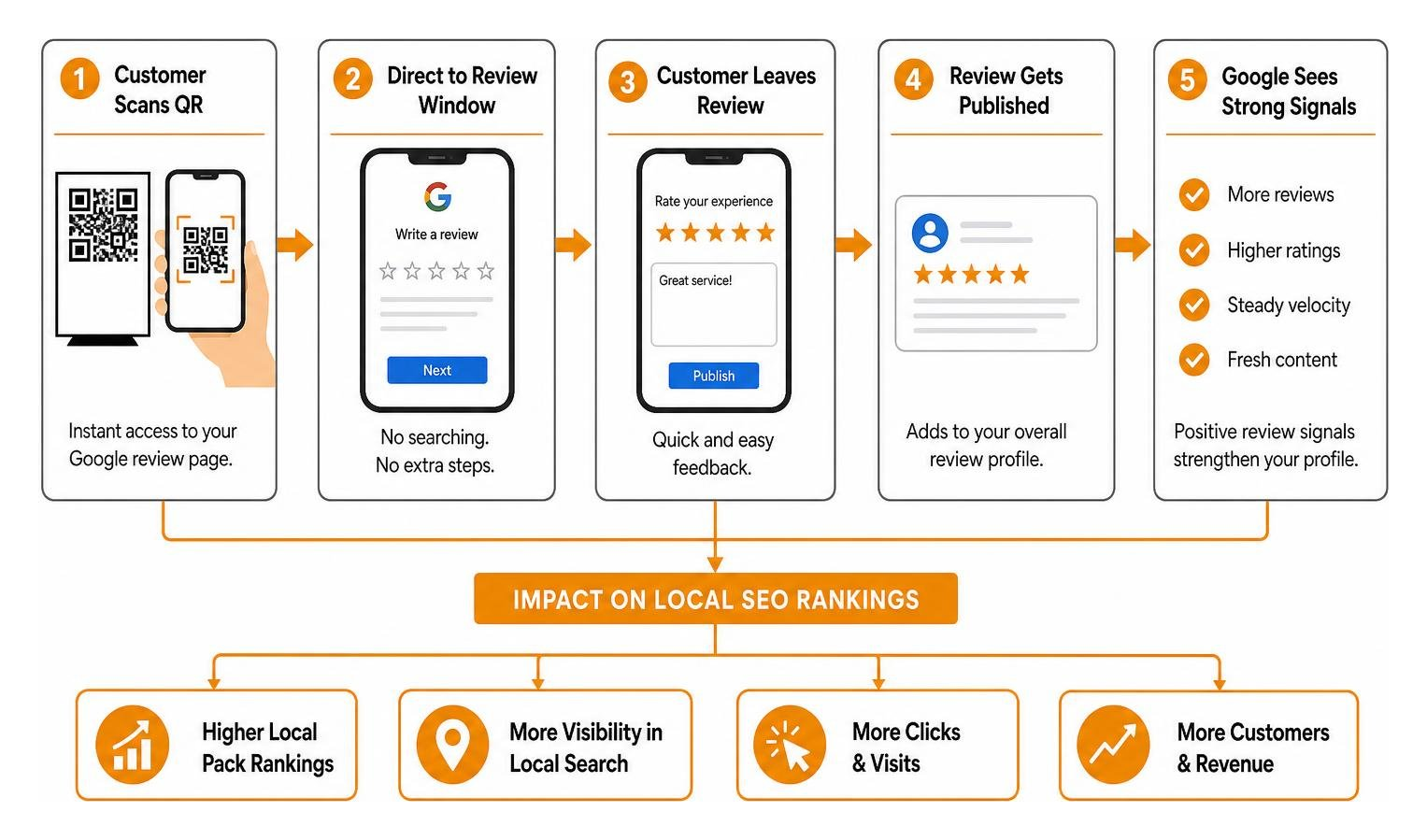
A google review qr code is a scannable image that links directly to the feedback window of your Google Business Profile. Instead of asking a happy customer to open Safari or Chrome, type in your full business name, scroll past paid advertisements, and hunt for the “Write a Review” button, you eliminate every single step of friction.
When a customer points their smartphone camera at your QR code, a pop-up banner appears on their screen. Tapping that banner takes them directly to your review submission box. From there, all they need to do is pick their star rating, type a sentence or two, and hit publish.
Understanding the Direct Review Experience
Reducing friction is the single most effective way to turn customer goodwill into public testimonials. Research shows that 82% of consumers read reviews for local businesses, and 88% trust online reviews as much as personal recommendations from friends or family. Most people are more than willing to leave a review when they have a great experience, but their motivation drops rapidly the moment they face even a tiny bit of hassle.
By linking directly to your official Google Business Profile review dialog, you capture that customer enthusiasm while it is at its absolute peak. If you want a complete breakdown of how Google manages local feedback, check out our overview of Google review management.
How Reviews Elevate Local Pack Search Rankings
Collecting steady customer feedback does far more than make your business look good—it directly fuels your local search engine optimization (SEO). Review signals account for roughly 15% of Google Local Pack ranking factors. Google’s algorithm prioritizes local businesses that demonstrate consistent review velocity (a steady stream of fresh reviews) and positive star ratings.
Furthermore, data from Harvard Business School demonstrates that a 1-star increase in an average rating can lift business revenue by 5–9%. Crossing critical trust thresholds—like moving from a 3.8 to a 4.2-star rating—can mean the difference between winning a prospective customer and being passed over entirely. For a deeper dive into optimizing your public rating, read our strategic guide to boosting star ratings.
How to Get Your Link and Generate a Review Code
Creating a custom google review qr code takes less than five minutes. You can extract your link directly from your Google Business Profile or build it using a Place ID lookup tool, then convert it into a scannable graphic.
Step 1: Extract Your Official Business Review Link
To get your official link directly from Google, you will need to log into your Google Business Profile on a desktop browser. Google currently restricts generating native review links and codes to desktop browsers—you cannot extract it natively from the mobile app interface.
- Navigate to your Google Business Profile manager dashboard on a computer browser.
- Select the Read reviews tab and click on the Get more reviews button.
- A pop-up will appear featuring a short URL (formatted like
https://g.page/r/.../review). Click Copy next to the link.
Alternatively, if you prefer to build the link manually, you can use Google’s Place ID Lookup tool. Locate your unique Place ID string and append it to the end of this URL format: https://search.google.com/local/writereview?placeid=YOUR_PLACE_ID.
For official instructions straight from the source, consult the official Google Business Profile review link guide.
Step 2: Generate and Customize Your Google Review QR Code
Once you have your direct review URL, paste it into a QR code generator. While basic black-and-white codes get the job done, customizing the code with your brand elements builds trust and yields higher scan rates. Customers are naturally hesitant to scan random, context-less square codes.
- Color Contrast: Keep a high contrast ratio between the foreground elements (dots/modules) and the background. Always use dark dots on a light background so camera sensors can read it instantly.
- Add a Business Logo: Embedding your business logo in the center reassures customers that the code belongs to a legitimate business.
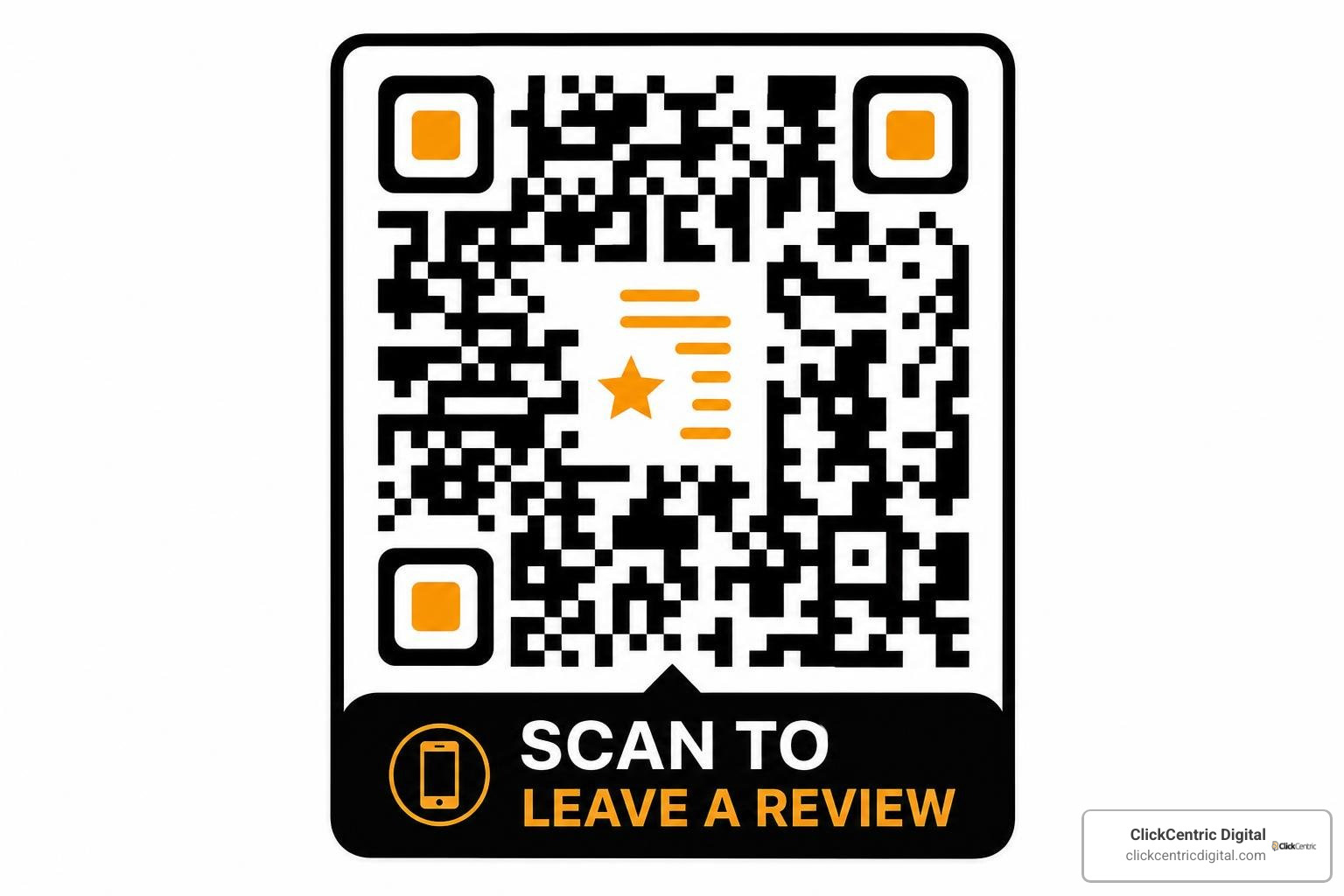
- Call-to-Action Frame: Surround the QR code with a prominent frame that says “Scan to Leave a Review” or “Share Your Feedback.”
- Preserve the Quiet Zone: Maintain a clear border space (the quiet zone) around the outer edges of the matrix so smartphone software can distinguish the code from background artwork.
Step 3: Test and Export Your Code for Printing
Before printing hundreds of stickers, table tents, or receipts, thoroughly test your QR code:
- Test the scan using both iOS (iPhone) and Android devices.
- Scan the code in incognito/private browsing mode to verify that it loads the correct Google review pop-up box rather than landing on a generic homepage.
- Export the file in PNG format for digital usage or small-scale print jobs.
- Export in vector format (SVG or EPS) for large print materials (like wall signs or posters) to ensure pixel-perfect rendering without blurriness.
Static vs Dynamic QR Codes for Review Collection
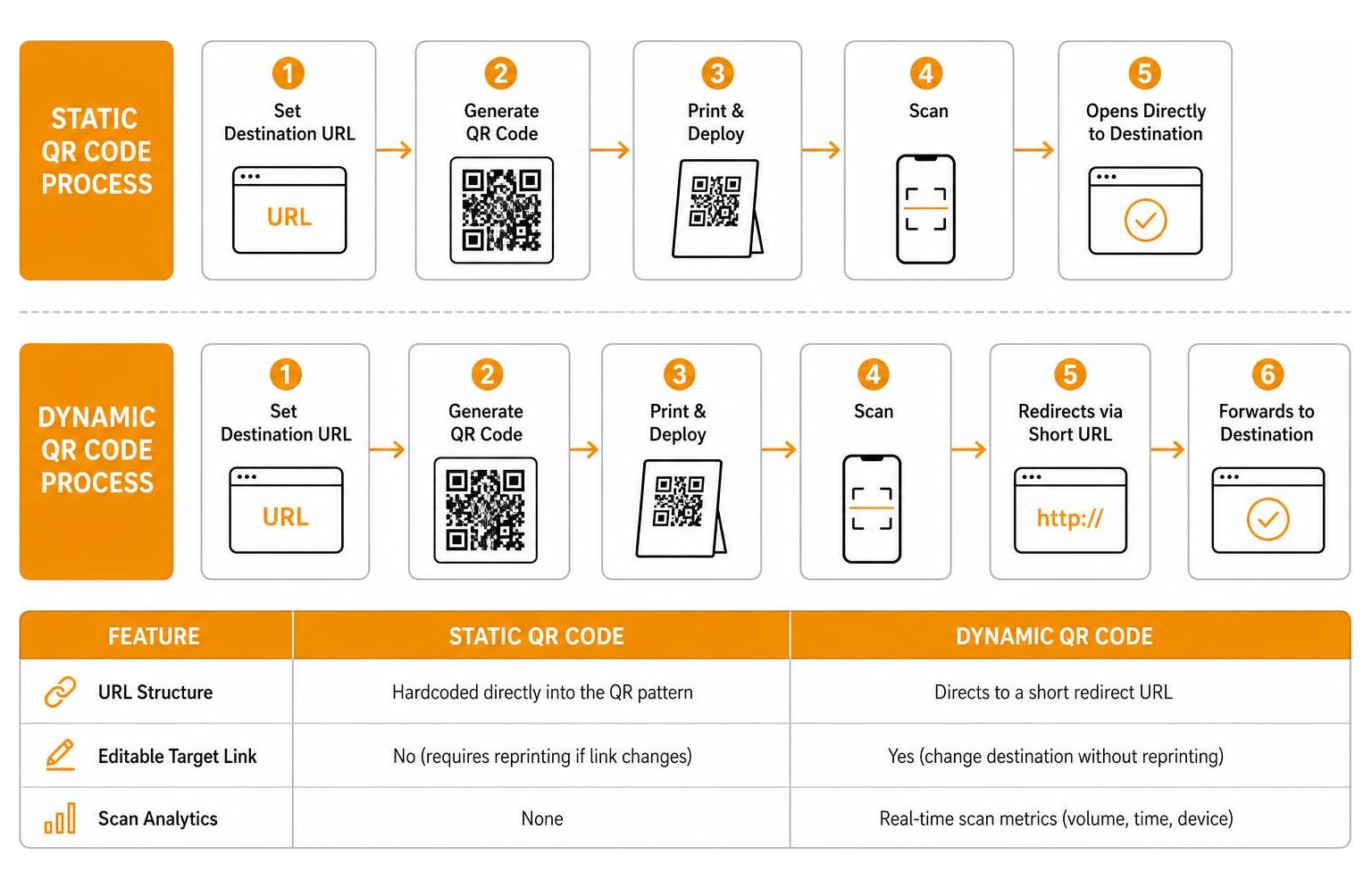
When selecting a QR code generator, you will choose between two primary types of QR codes: static and dynamic. Understanding the operational differences between them will help you make the right choice for your business.
| Feature | Static QR Code | Dynamic QR Code |
|---|---|---|
| URL Structure | Hardcoded directly into the QR pattern | Directs to a short redirect URL |
| Editable Target Link | No (requires reprinting if link changes) | Yes (change destination without reprinting) |
| Scan Analytics | None | Real-time scan metrics (volume, time, device) |
| Code Pattern Complexity | Dense and complex with long URLs | Clean, sparse matrix (scans faster) |
| Cost | 100% Free | Often requires a free or paid software account |
For permanent print materials like physical store signage, counters, and packaging, dynamic codes offer a distinct advantage: if Google ever updates its URL structures or if you migrate your profile, you won’t need to throw away your printed collateral. To learn more about tracking performance, read this comprehensive dynamic review QR code tool guide.
Strategic Placement and Best Practices for Your Google Review QR Code
Displaying a google review qr code consistently across your physical and digital touchpoints can generate three to five times more reviews than relying on verbal requests alone. However, placement context and timing are everything.
High-Conversion Physical and Digital Touchpoints
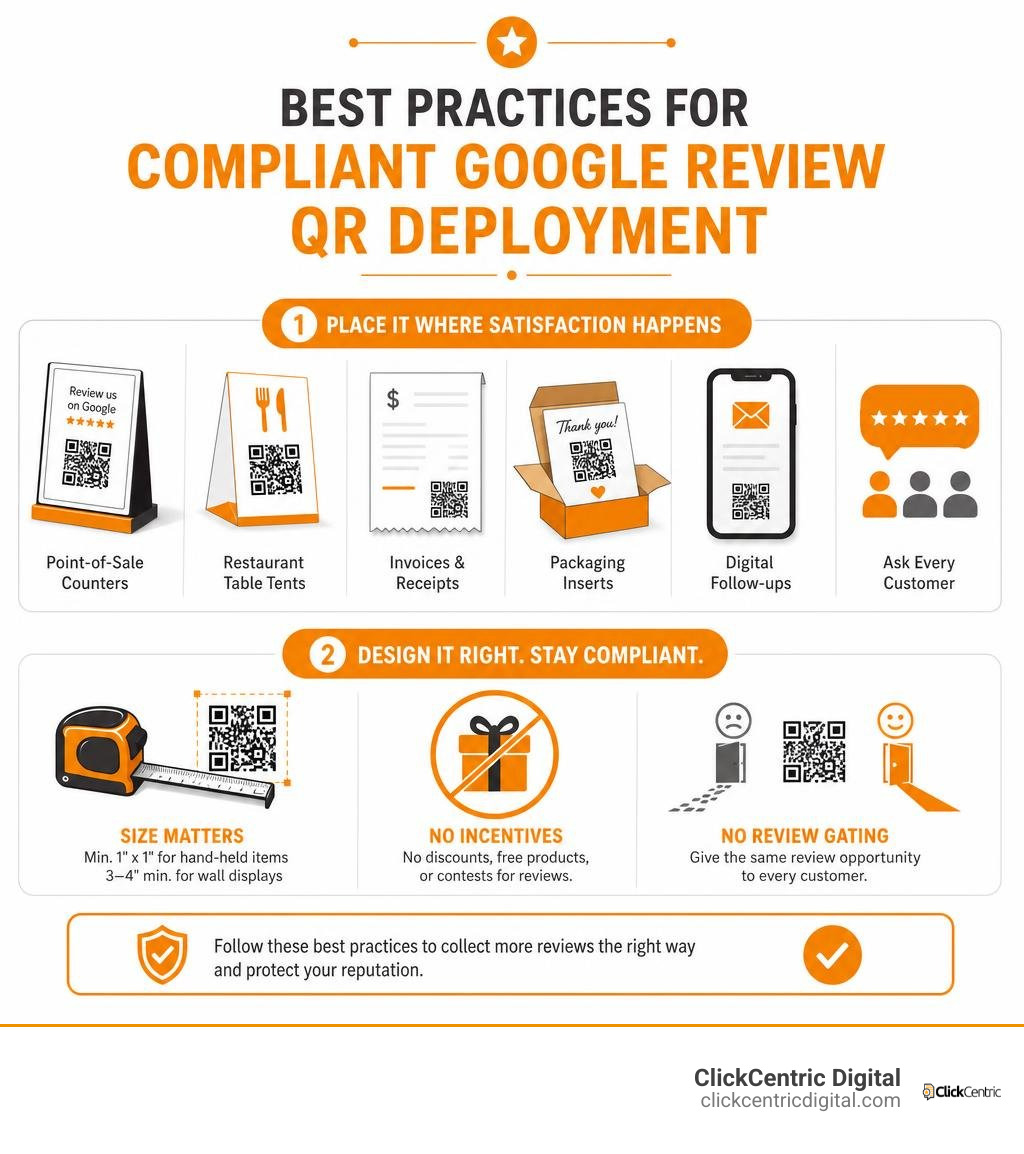
To catch customers during their peak moment of satisfaction, place your QR codes strategic touchpoints:
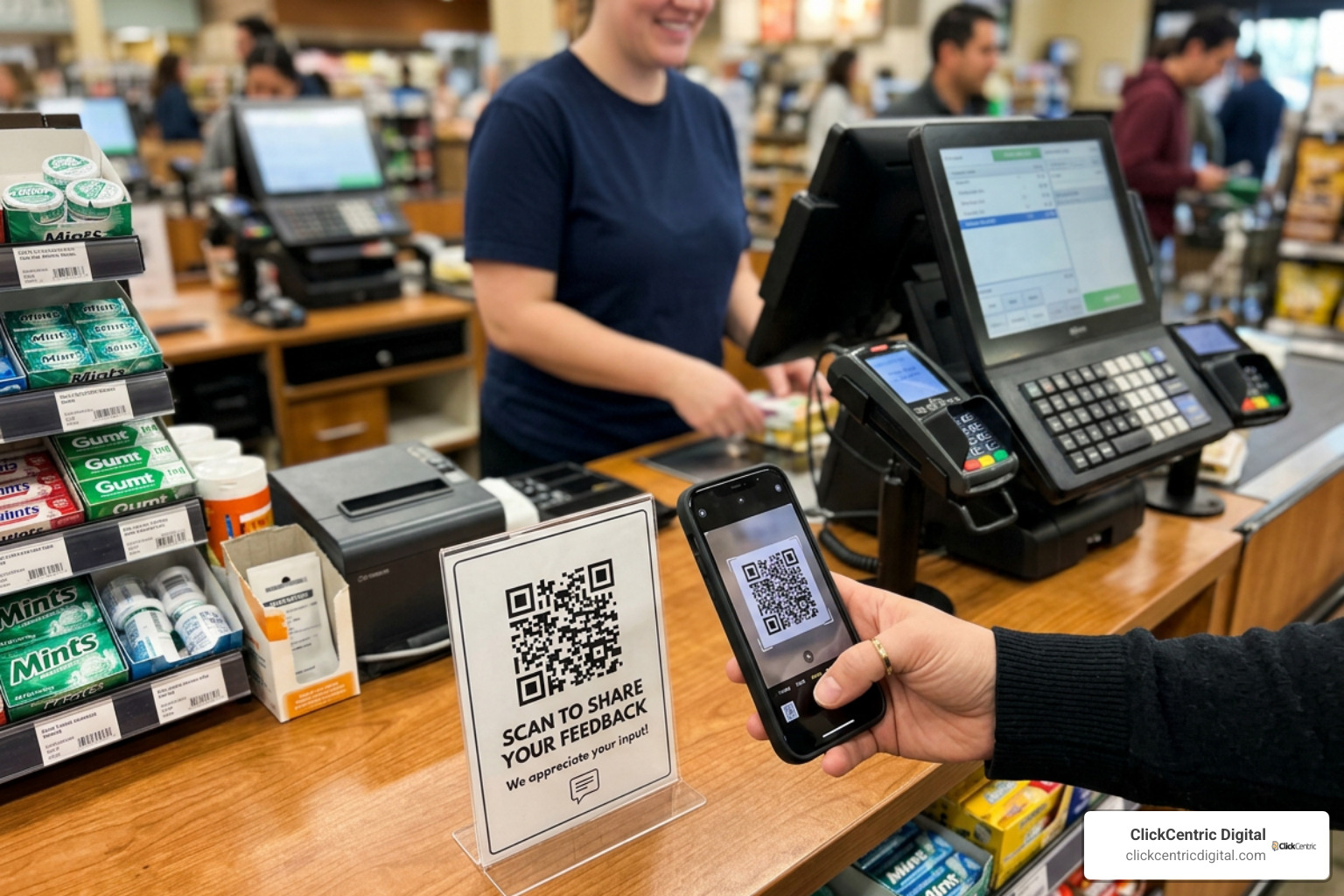
- Point-of-Sale Counters & Payment Terminals: Physical counter displays near checkout registers reach retail shoppers right after a purchase.
- Restaurant Table Tents & Check Presenters: Displaying a table tent or check-presenter card captures guests while they finish their meal or wait for the bill (achieving average conversion rates of 8–12%).
- Invoices & Paper Receipts: Tradespeople and field-service contractors handing over a physical job-completion invoice achieve conversion rates of 15–20% by embedding review codes directly on the invoice.
- Packaging Inserts & Unboxing Boxes: Adding a thank-you card featuring a QR code inside takeout packaging or product boxes reaches customers at home.
- Digital Signatures & Follow-ups: Embed review QR codes in customer support email signatures or billing receipts.
If you want to streamline review collection even further, check out our guide on automated Google review strategies.
Essential Design Standards and Policy Rules
When printing and deploying your QR codes, stay compliant with physical design standards and Google’s platform policies:
- Sizing Rules: For hand-held items (receipts, business cards), keep the QR code at least 1 x 1 inch (2.5 x 2.5 cm). For wall displays or signage scanned from a distance, scale the code up to 3–4 inches minimum.
- Strict Prohibitions on Incentives: Google’s fake engagement policy strictly forbids offering financial incentives, discounts, free products, or entry into raffles in exchange for leaving a review. Violations can lead to Google wiping your entire review history.
- No Review Gating: You must present the exact same review opportunity to all customers. Using software that filters unhappy customers away from Google while routing happy customers to Google violates Google’s explicit policies.
Frequently Asked Questions About Google Review QR Codes
Do customers need a Google account to leave a review?
Yes. Google requires users to sign in with a verified Google Account (such as a Gmail address or Google Workspace account) to publish a review. This authentication prevents spam, fake bot submissions, and unauthorized manipulation of local business listings.
Can I track how many people scan my google review qr code?
Yes, provided you use a dynamic QR code. Dynamic QR code tracking platforms measure scan metrics including total scan counts, geographic locations, scan times, and smartphone operating systems (iOS vs. Android). However, that scan analytics measure how many people opened the review page, not how many actually submitted a written review, due to privacy boundaries set by Google.
Can I offer discounts or gifts to customers who leave reviews?
No. Offering discounts, gift cards, free products, or contest entries in exchange for a Google review is a direct violation of Google’s Fake Engagement policy and FTC guidelines. Keep your request neutral, honest, and focused on genuine customer feedback.
Conclusion
A google review qr code bridges the gap between physical customer experiences and your digital reputation. By removing the hassle of searching online, you make it easy for your happiest customers to leave authentic, detailed feedback that boosts your local search presence.
At ClickCentric Digital, we specialize in helping local businesses across Grand Rapids, West Michigan, Holland, Grand Haven, South Haven, and Kalamazoo maximize their local search presence, manage online reputation, and scale revenue through targeted local acquisition strategies.
Ready to transform your local search visibility and capture more 5-star feedback effortlessly? Master your review strategy with ClickCentric Digital today!
Sorry, the comment form is closed at this time.