

30 Sep Put Your Business on the Map with Google Maps Advertising
Put Your Business on the Map with Google Maps Advertising
Why Google Maps Ads Are a Game-Changer for Local Businesses

Google Maps ads are paid placements that appear directly inside the Google Maps experience — helping local businesses get found by nearby customers who are ready to act.
Here’s a quick overview of what they are and how they work:
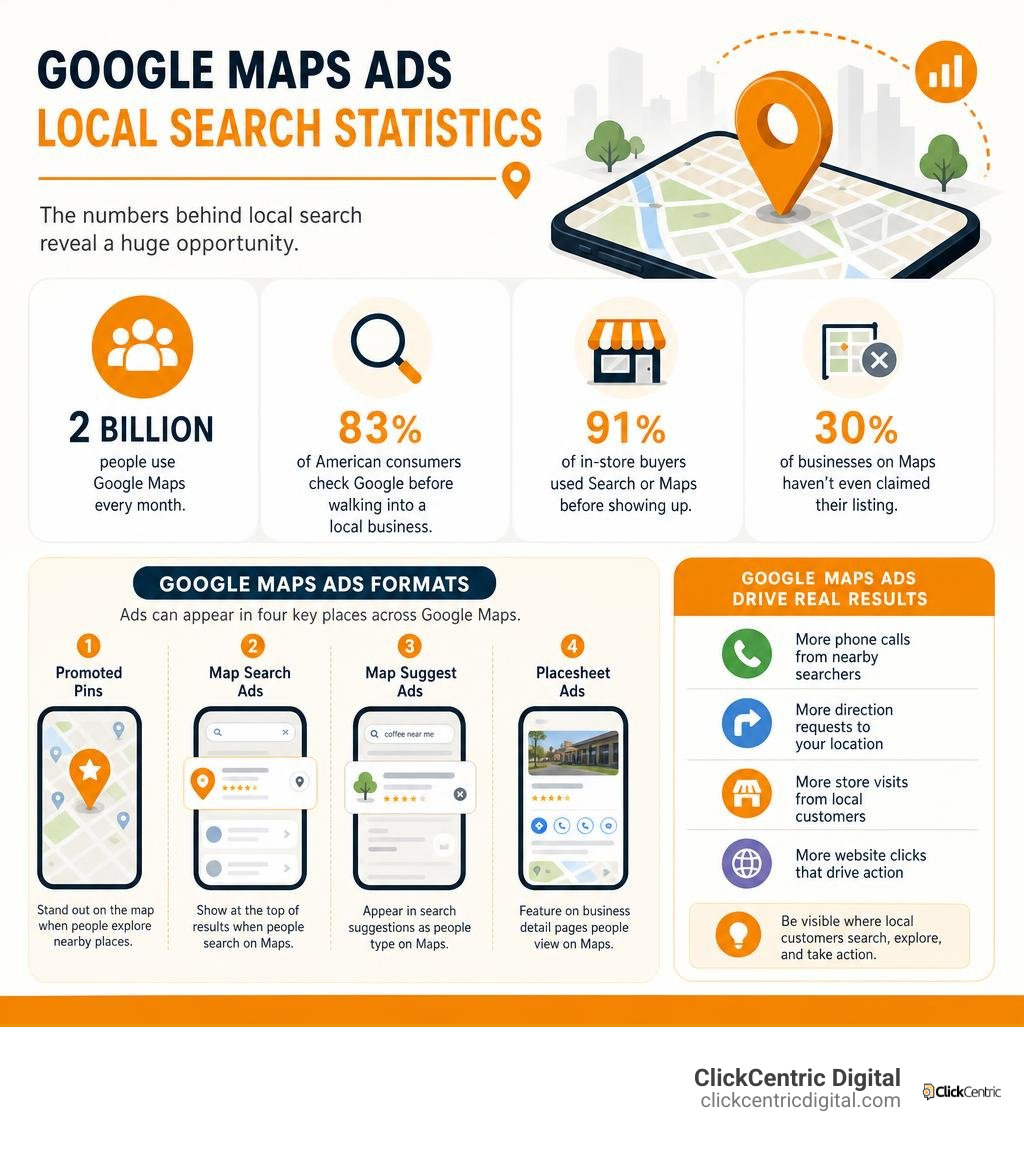
- What they are: Ads that appear on Google Maps in four formats — Promoted Pins, Map Search Ads, Map Suggest Ads, and Placesheet Ads
- How you run them: Through Google Ads (not Maps directly), using campaign types like Performance Max, Search, or Smart campaigns
- What they cost: Typically $2–$6 per click for most local businesses, billed on a cost-per-click (CPC) basis
- What you need to start: A verified Google Business Profile, a Google Ads account, and active location assets
- What they drive: Phone calls, direction requests, store visits, and website clicks from nearby searchers
The numbers behind local search tell a clear story. 2 billion people use Google Maps every month. 83% of American consumers check Google before walking into a local business. And 91% of in-store buyers used Search or Maps before showing up. Yet remarkably, 30% of businesses on Maps haven’t even claimed their listing — let alone run a single ad.
That gap between visibility and missed opportunity is exactly where Google Maps advertising comes in.
I’m Fred Dirkse, and in this guide I’ll walk you through everything you need to know — from ad formats and campaign setup to costs, performance tracking, and troubleshooting — so you can start putting your business in front of the right local customers.
Simple guide to google maps ads terms:
Understanding the Formats and Campaign Types
To succeed with Google Maps advertising, you have to understand that Google Maps isn’t a standalone ad network. You can’t just open a “Google Maps Ads Manager” and buy ad space. Instead, Maps is a highly valuable surface that Google populates using your broader Google Ads campaigns.
When we build local campaigns for our clients in Grand Rapids, Holland, and across West Michigan, we leverage Google’s sophisticated multi-surface delivery. This means your ads don’t just sit in one spot; they dynamically appear across Search, Maps, YouTube, and the Display Network depending on where your next customer is looking.
To get a complete grasp of how this ecosystem functions, check out our comprehensive resource on The Ultimate Guide to Google Maps Marketing.
The Four Core Formats of Google Maps Ads
When you launch a campaign that targets Google Maps, your business will show up in one of four distinct formats. Each serves a different user behavior, from passive browsing to active, high-intent searching:
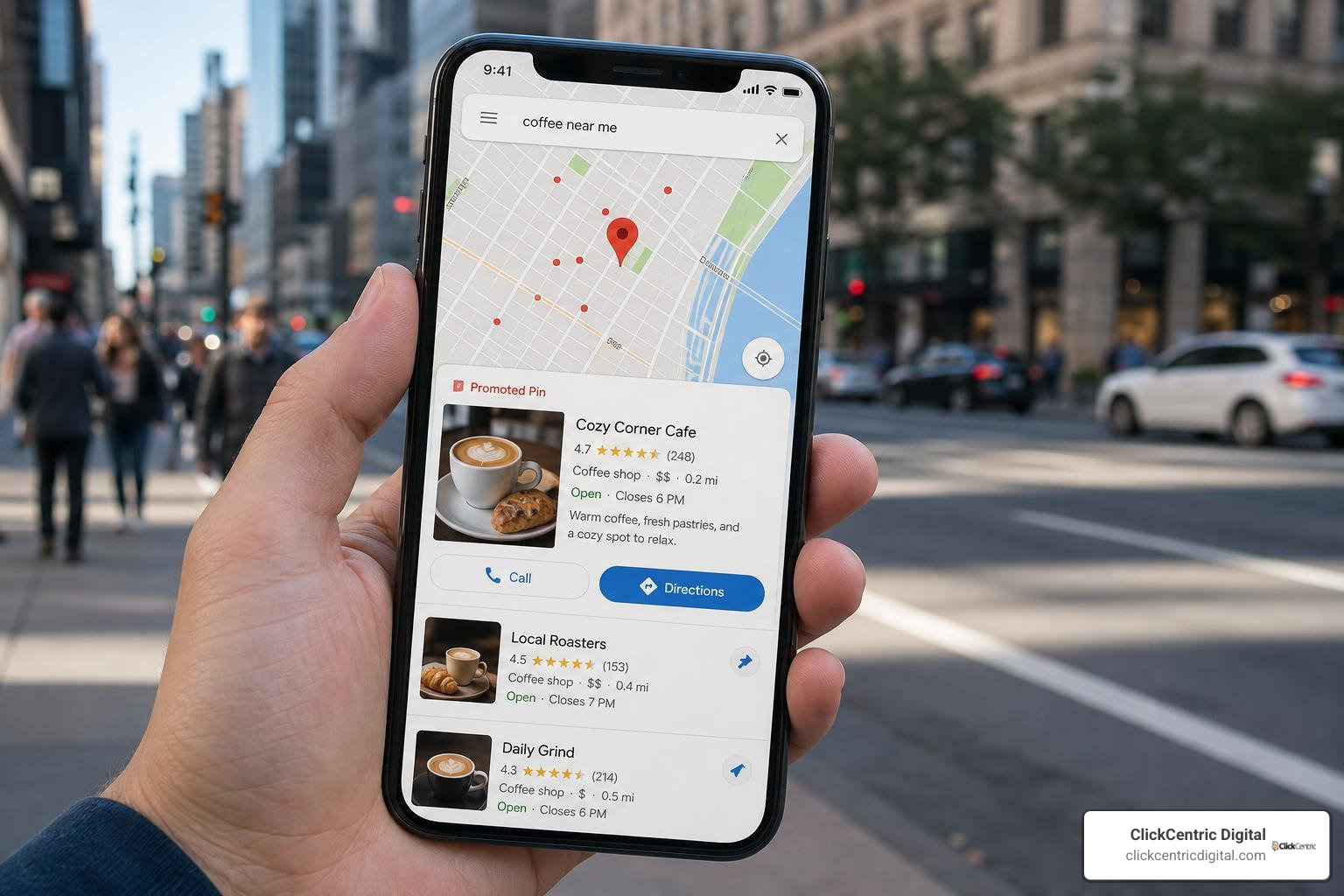
- Promoted Pins (Sponsored Locations): These are the crown jewels of visual map advertising. Unlike the standard round, organic pins that dot the map, Promoted Pins are square. They stand out immediately. Depending on the campaign type you choose, they can even display your business logo directly on the map. If a driver is navigating down US-131 in Grand Rapids, a Promoted Pin can pop up to highlight your nearby storefront.
- Map Search Ads: When a user types a search query like “plumber near me” or “best bakery in Holland MI” directly into the Google Maps search bar, the top results are Map Search Ads. These text-based listings appear at the very top of the search results sidebar, clearly labeled with a “Sponsored” tag.
- Map Suggest Ads: These are autocomplete suggestions that appear on the Google Maps mobile app as a user is typing in their search query. If someone starts typing “coffee,” Google may suggest your local cafe as an ad-supported autocomplete option before they even finish typing.
- Placesheet Ads: When a user clicks on a business listing (or a competitor’s listing), a “placesheet” slides up with details like hours, reviews, and photos. Placesheet ads appear within this detail card. For example, a hotel might feature a booking module here, or a retail shop located inside a shopping mall might display a targeted ad on the mall’s main detail page.
For the official technical breakdown of these formats, you can refer directly to the How to advertise in Google Maps – Google Ads Help documentation.
Supported Campaign Types and the Exclusivity Myth
Here is the most important truth you need to know about google maps ads: You cannot run ads exclusively on Google Maps.
We often talk to business owners in Grand Haven or Kalamazoo who say, “I only want to pay for map ads. Can we turn off standard Google Search?” The short answer is no. Google has bundled Maps placements into broader campaign types. However, this is actually a benefit because it allows Google’s AI to target users at different stages of their buying journey.
Let’s break down which campaign types support which Map ad formats:
- Performance Max (PMax) for Store Goals: This is Google’s flagship automated campaign type. It distributes your ads across Maps, Search, YouTube, Gmail, and the Display Network. PMax is highly recommended because it is the only campaign type that displays your custom business logo inside a square Promoted Pin on the map.
- Search Campaigns with Location Assets: This is the traditional way to run map ads. By building a Search campaign and linking your location assets, your text ads will automatically eligible to appear as Map Search Ads when users search for local terms.
- Smart Campaigns: Designed for smaller budgets and simpler setups, Smart campaigns automatically distribute ads to Maps and Search, displaying a generic icon or business type pin instead of a custom logo.
- Travel Campaigns: Specifically designed for hospitality businesses, these power Placesheet ads (like booking modules) to capture travelers looking for lodging or activities.
If you are looking for advanced methods to segment your local targeting without wasting budget, read our guide on Little-Known Ways to Target Local Customers with Google Ads.
Setting Up Your Local Map Campaigns
Now that you know the formats, let’s look at how to get your business live on the map. Setting up these campaigns requires a bridge between your organic local presence and your paid advertising account.
Before spending a dime, it is vital to understand how paid search drives physical foot traffic. Take a look at our insights on Local PPC Campaigns That Actually Bring People Through the Door to align your expectations with real-world conversion metrics.
Step-by-Step: Launching Your First Google Maps Ads Campaign
Here is our step-by-step framework for setting up your Google Maps ads without making costly mistakes.
Step 1: Claim and Verify Your Google Business Profile (GBP)
Your Google Business Profile is the creative foundation of your map ads. Google pulls your address, phone number, operating hours, and customer reviews directly from your GBP to build your ad creatives. If your profile isn’t verified or contains outdated information, your ads will suffer.
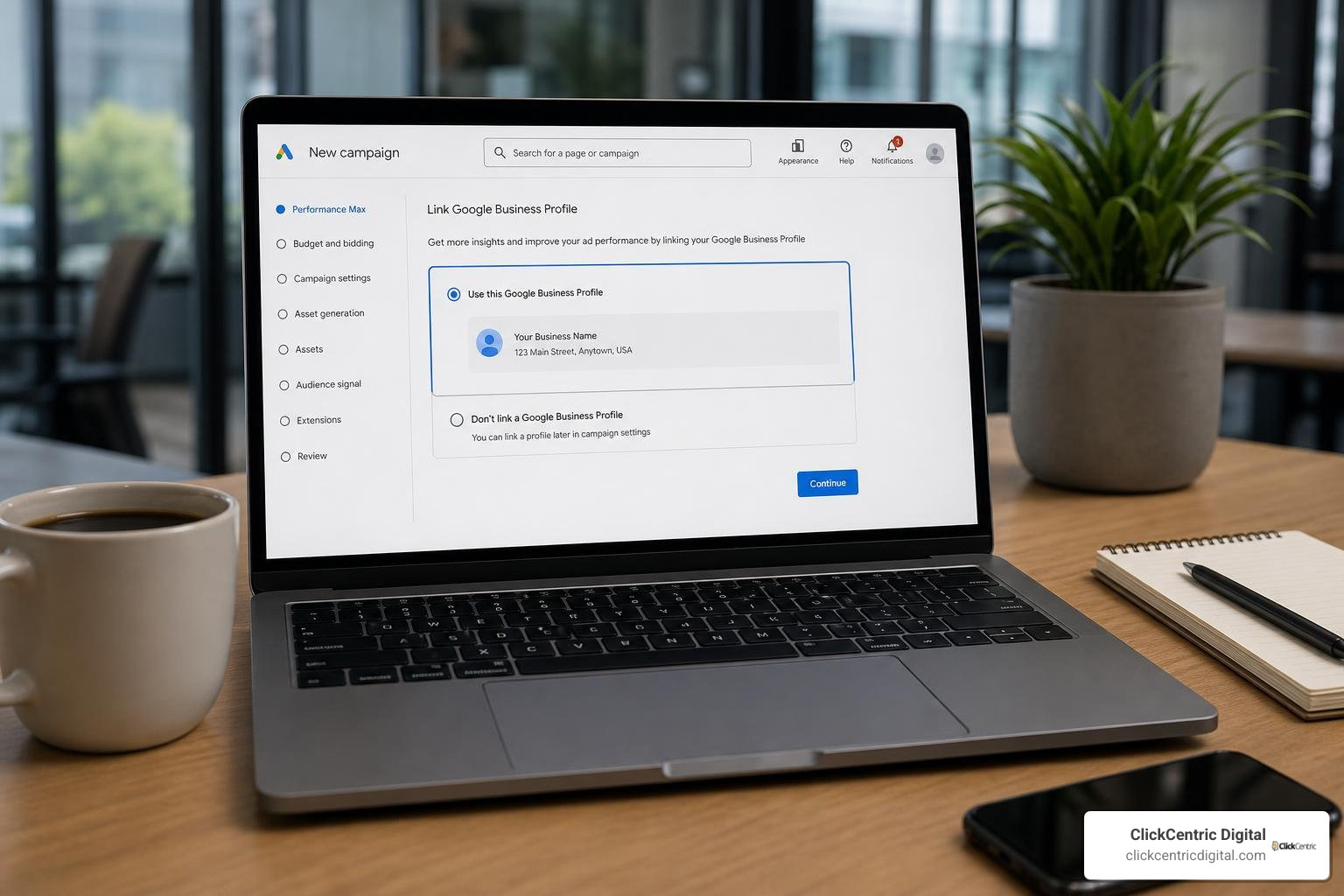
Step 2: Link Your GBP to Your Google Ads Account
Open your Google Ads dashboard. Navigate to Tools and Settings > Shared Library > Location Manager (or Assets under the “Ads and Assets” menu). Click the blue plus button to add a Location Asset. Choose to link your Google Business Profile. If you use the same email address for both accounts, this link is instant. If not, you will need to send an access request.
Step 3: Enable and Approve Location Assets
Once linked, ensure your location assets are active and approved at the account level. If you manage multiple locations across West Michigan (say, one storefront in Kalamazoo and another in Grand Rapids), you can use Location Groups to assign specific addresses to specific campaigns.
Step 4: Create a New Campaign
Select your campaign objective. To maximize your presence on Maps, choose Local Store Visits and Promotions or Create a campaign without a goal’s guidance and select Performance Max.
Step 5: Configure Geographic Targeting with Precision
This is where many businesses waste money. Under location settings, do not just target “United States.” Set a tight radius around your physical storefront (e.g., a 5-to-10-mile radius around South Haven or Grand Rapids). Crucial Tip: Change the location target setting from “Presence or Interest” to “Presence: People in or regularly in your targeted locations.” This prevents your budget from being wasted on out-of-state searchers who have no intention of visiting your local business.
Step 6: Build Your Asset Group
Upload high-quality images, logos, and write compelling headlines and descriptions. Avoid using cheesy stock photos. If you run a local service business, upload real photos of your branded trucks or your team. Google’s AI will mix and match these assets to serve the best possible ad combination.
For more step-by-step guidance directly from Google, read the official guide on how to Show local search ads on Google Maps – Google Ads Help .
Optimizing Your Google Business Profile for Maximum Ad Performance
Because your google maps ads pull content directly from your organic listing, a poorly optimized Google Business Profile will directly degrade your ad performance. If your GBP has a 2.5-star rating, running ads will simply help more people see that you have poor reviews.
To optimize your profile:
- Build a 5-Star Reputation: Actively request reviews from your satisfied West Michigan customers. A recommended threshold is at least 25 to 50 positive reviews before launching paid local ads. Higher ratings improve your ad’s click-through rate (CTR), which in turn lowers your cost per click.
- Keep Your Hours Accurate: If you run ads on Sundays but your physical shop in Holland MI is closed, you are paying for clicks that lead to locked doors. This is a fast track to 1-star reviews.
- Upload High-Quality Media: Regularly add real, high-resolution photos of your storefront, products, or completed jobs. These assets are pulled directly into mobile map ads.
To master this process, read our detailed guide on How to Master Local Map Optimization for More Customers.
Demystifying the Cost of Google Maps Ads
One of the most common questions we get at ClickCentric Digital is: “How much is this going to cost me?” Let’s break down the math behind Google Maps ad pricing so you can budget effectively.
To make sure your budget is working as hard as possible, dive into our strategic breakdown of Google Maps Ad Costs and How to Not Go Broke.
Cost Structure and Industry Benchmarks
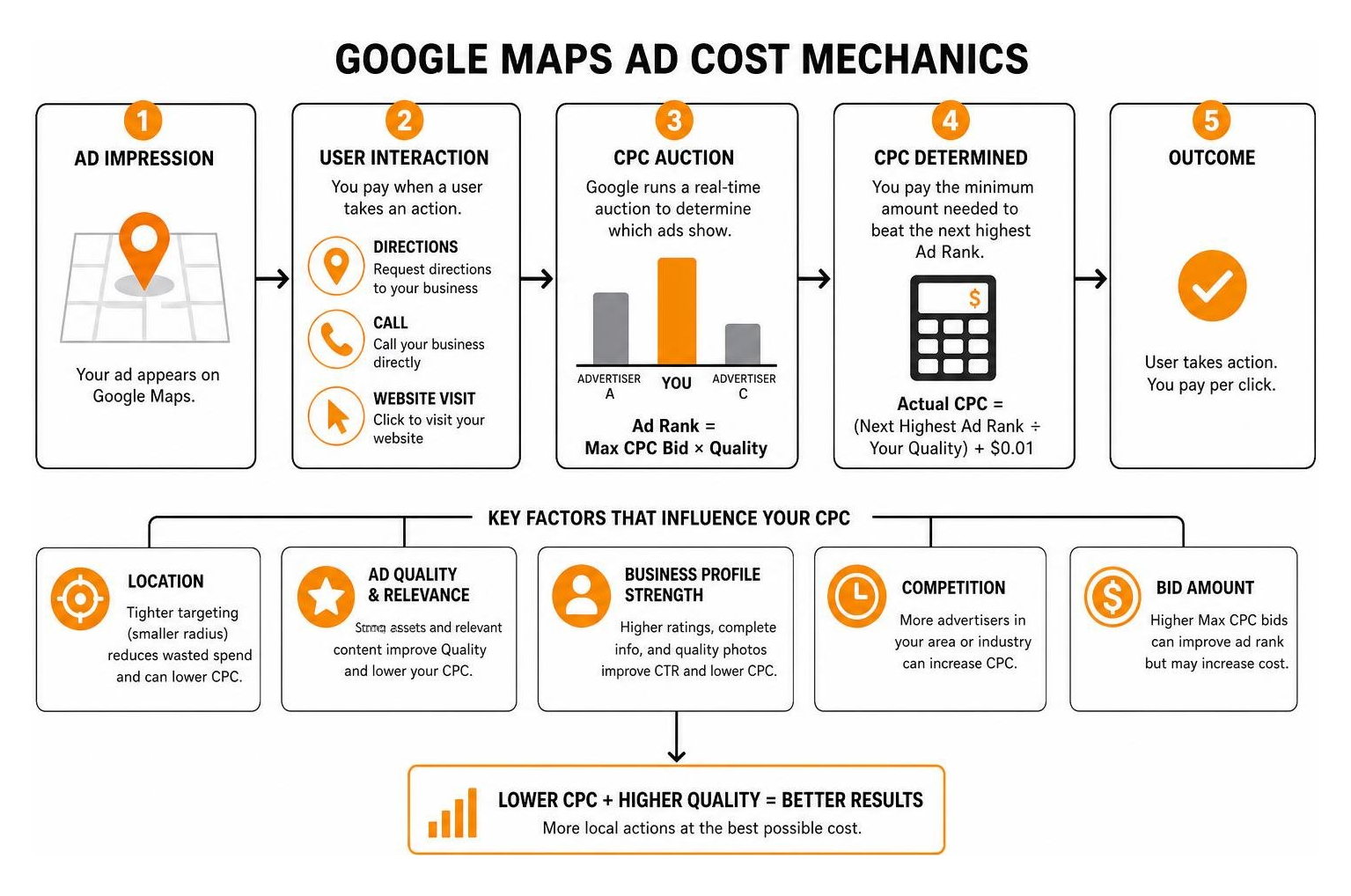
Google Maps ads operate primarily on a Cost-Per-Click (CPC) model. However, unlike standard search ads where you only pay when someone clicks to visit your website, Google Maps ads track several unique, local-intent click types:
- Clicking to get driving directions
- Clicking to call your business directly
- Clicking to expand your location details (expanding the placesheet)
- Clicking to visit your website
Google only charges you for one click type per interaction session. If a user clicks to expand your details and then clicks to call you, you are only billed once.
If you run a Performance Max campaign for store goals, Google may occasionally charge on a Cost-Per-Thousand Impressions (CPM) basis specifically for displaying your branded logo pin on the map surface to users who are browsing.
Your actual cost per click is calculated using Google’s standard auction formula:
$$\text{Actual CPC} = \frac{\text{Ad Rank of the Competitor Below You}}{\text{Your Quality Score}} + \$0.01$$
This means that a higher Quality Score (which is heavily influenced by your CTR, ad relevance, and the quality of your Google Business Profile) directly lowers what you pay.
While the all-industry average CPC on Google Ads sits around $5.26, local Maps campaigns tend to run significantly cheaper—typically averaging $2 to $6 per click. However, these costs vary widely by industry:
| Industry | Average CPC Range | Typical Monthly Budget (Small Business) |
|---|---|---|
| Restaurants & Food Services | \$0.50 – \$2.00 | \$300 – \$1,000 |
| Retail & Boutiques | \$1.00 – \$3.00 | \$500 – \$1,500 |
| Home Services (Plumbing, HVAC, Roofing) | \$3.00 – \$8.00 | \$1,000 – \$3,000 |
| Healthcare & Dental | \$3.00 – \$12.00 | \$1,000 – \$4,000 |
| Legal Services | \$15.00 – \$80.00+ | \$2,000 – \$5,000+ |
Measuring Performance and Troubleshooting Issues
Once your campaign is live, you need to know if it is actually driving business. Tracking offline conversions requires a slightly different approach than tracking online e-commerce sales.
To ensure you aren’t flying blind, read our guide on how to Stop Guessing Your Local Map Ranking and start measuring what matters.
Tracking Local Conversions and Click Types
To see how users are interacting with your map ads, you must use the Segment tool in your Google Ads dashboard.
- Go to your campaign view.
- Click on the Segment icon.
- Select Click Type.
This will break down your performance into three highly specific local interaction metrics:
- Get location details: Shows how many users clicked to expand your business profile to read reviews, view photos, or check your hours.
- Get directions: Tracks how many users actively clicked to map a route to your physical location in Grand Rapids, Holland, or Grand Haven. This is a massive high-intent conversion signal.
- Mobile clicks-to-call: Tracks how many mobile users tapped the “Call” button directly from your ad.
Additionally, if your account meets Google’s physical traffic volume and history requirements, Google will automatically enable Store Visits conversion tracking. This uses anonymized mobile location data to track users who saw or clicked your ad and subsequently walked into your physical store.
For a deeper dive into how Google measures and bills these local actions, read About Local Ads – Google Ads Help .
Why Aren’t My Ads Showing? Common Troubleshooting Steps
It can be incredibly frustrating to search for your own business on Google Maps and see nothing but your competitors. Before you panic, run through these common troubleshooting steps:
- Check Your Zoom Level: Promoted Pins have strict zoom-level restrictions. If you are zoomed out to view the entire state of Michigan, Google will not render local business pins. Zoom in closely on your neighborhood (e.g., downtown Kalamazoo) to see if your pin appears.
- Verify Your Google Business Profile: If your GBP is unverified or has been suspended, your location assets will silently break. Check your GBP dashboard to ensure your status is “Live.”
- Look for Broken Location Assets: In Google Ads, navigate to your Assets tab. Ensure your location assets are approved and not marked as “disapproved” or “under review.”
- Evaluate Your Location Targeting: If you set your targeting to “Presence” and you are searching from outside your target radius, your ad will not show to you.
- Assess the Auction Competition: You won’t win every single auction. If your competitors are bidding aggressively or have higher Quality Scores, they may win the map placement for that specific search query.
For an extensive plan on keeping your business visible, check out our guide on how to Get Your Business on the Map and Stay There.
Google Maps vs. Other Local Advertising Platforms
When deciding where to spend your local marketing dollars, it is helpful to look at how Google Maps stacks up against other local advertising options like Yelp, Waze, and Facebook.
- Google Maps Ads: The clear winner when it comes to search intent. When a user opens Google Maps and types “tire repair,” they have an immediate, urgent need. The intent gap is virtually non-existent. Google Maps reaches 2 billion monthly users, dwarfs all competitors, and integrates natively with the world’s most popular search engine.
- Waze Ads: Since Google owns Waze, Waze ads are now integrated into Performance Max for store goals (in the US). Waze is fantastic for targeting commuters and drivers on the move with “on-route” Promoted Pins. However, it is less effective for service-area businesses (like plumbers or electricians) and is highly geared toward retail, food, and gas stations.
- Yelp Ads: Yelp has a loyal user base of around 178 million monthly users, but its ad platform has historically been criticized for high costs and aggressive sales tactics. Running Yelp ads alongside Google Maps ads on a tight budget can often cannibalize your audience, as they target similar local search intents.
- Facebook Ads: Facebook is incredible for demographic and interest-based targeting, but it lacks immediate search intent. A Facebook ad can build awareness for your Grand Rapids boutique, but it won’t capture the person who is actively driving around looking for a place to buy a dress right now.
For a strategic breakdown of dominating your local market, read our guide on how to Optimize for Local Search and Dominate Your Neighborhood.
Frequently Asked Questions about Google Maps Advertising
Can I run ads exclusively on Google Maps?
No. As of July 2026, Google does not allow you to isolate Google Maps as a single advertising channel. Maps ads serve as part of broader campaign types (like Performance Max, Search with Location Assets, or Smart campaigns) that automatically distribute ads across multiple Google surfaces. However, Google’s machine learning algorithm will naturally shift your budget toward Maps when it detects local, high-intent search queries.
Do customer reviews affect my Google Maps ad performance?
Yes, absolutely. Because Google Maps ads pull information directly from your Google Business Profile, your organic customer reviews and star ratings are displayed right alongside your paid ad. A high volume of positive reviews increases your click-through rate (CTR). A higher CTR signals to Google that your ad is highly relevant, which improves your Quality Score and lowers your actual cost per click.
What is the difference between promoted pins and local search ads?
The primary difference is visual appearance and user behavior. Promoted Pins are square icons (often featuring your business logo) that appear directly on the map surface while a user is browsing or navigating. They are designed to capture visual attention and drive spontaneous visits. Local Search Ads are text-based listings that appear at the top of the search results sidebar in Google Maps, clearly marked with a “Sponsored” tag. They target users who have typed a specific search query into the search bar.
Conclusion
In 2026, local business success is defined by visibility. If you aren’t visible on Google Maps when a nearby customer is searching, you are essentially giving away your market share to competitors who are.
Setting up and managing google maps ads does require some technical coordination—from linking your Google Business Profile and managing location assets to structuring your Performance Max campaigns and analyzing click segmentation. But when done right, it is one of the most cost-effective paid traffic strategies available for local businesses.
At ClickCentric Digital, we specialize in helping businesses across Grand Rapids, Holland, Grand Haven, South Haven, Kalamazoo, and the broader West Michigan area improve their local search rankings, manage their reputations, and drive real, measurable foot traffic through expert paid traffic management.
Ready to dominate your local market? Grow your business with ClickCentric Digital today, and let’s put your business on the map.
Sorry, the comment form is closed at this time.